I already showed you how to install Chrome OS in Virtual box and in USB Pen drive in previous articles.They have larger startup delay on Broadcom wifi adapters and also some time having freezing problem.
Now the new update build by Hexxeh is named as Chromium OS Zero and it boasts speed improvements, automatic delivery of system updates, a reduction in the startup delay on Broadcom wifi adapters, customized bootsplash graphic. The new Chrome OS now has full extension support and bookmark sync, which makes it easy to experiment.
Download the Latest build from here.
Direct download from here (203 MB). (pre scanned)
Torrent download from here (254 MB).
After the download is completed Extract the downloaded file by WinZip or WinRAR or any other archive Extractor.Save the file ChromeOS-Zero.img.
Now you can install this Chrome OS in two way. In USB Pen drive or In Virtual Machine (or you may also install in to Hard disk). Here in both cases, you can use the same file (.img) downloaded above or download .vmdk in case of installing in virtual box or VMware.
1. Install in USB Pen drive.
If you are using windows then follow these Instructions for installing Chromium OS to USB:
Download Image Writer for Windows (5 MB) and extract the downloaded file.Launch the program, by double clicking on file Win32DiskImager.exe (In Vista and Windows7 you have to run as Administrator).
Now in this window select the image (ChromeOS-Zero.img) and your USB drive letter from the drop down box.
Click Write. The install image will then be copied to the drive.
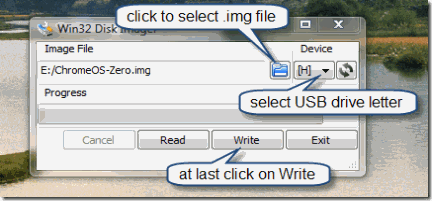
Note: The USB Pendrive/Flashdrive will be reformatted to fit the Image
Once it's done, close the program and you can then boot from the USB drive.
If you are using Ubuntu then follow these Instructions for installing Chromium OS to USB:
First you need to install USB Image Writer using the following command in Terminal.
sudo apt-get install usb-imagewriter
Wait until usb-imagewriter is installed.After the installation is completed Lunch it, you will find it under Applications > Accessories > Image Writer.
Then simply select the ChromeOS-Zero.img under “Write image”, select your USB drive, and click on the Write on device button.
If you are using Other Linux (also work in ubuntu) then follow this Instructions for installing Chromium OS to USB:
Extract ChromeOS-Zero.img and run the following command in the same directory as the file, where Z is the device name (not the partition name) of your USB drive.
sudo dd if=ChromeOS-Zero.img of=/dev/Z bs=4M
Once the command finishes, you can then boot from the USB drive.
NOTE:After you completed the above steps, Just insert the Pen Drive in the computer (must have a working Internet connection) in which you want to Boot Chrome OS from USB Pen Drive, then restart the computer and modify the BIOS settings if needed (enter in to the BIOS setting by pressing the appropriate key (generally ‘F2’ or ‘Del’ or ‘F10’) at the instant just before Computer will Boot and change the Boot order and set USB Device at #1 (highest priority).Then save and exit).
If your Pen Drive become smaller than it was, after trying this out then Just Format your Pen Drive using the HP USB Disk Storage Format Tool ( Download from here 96KB ). Alternatively use Disk Management in Windows or fdisk in Linux.
2. Install in Virtual Machine.
To install Chrome OS in Virtual Machine, you have to use any one of the Virtual box, VMware or other virtualization software which support Linux installation in Virtual Machine.The Virtual box ( developed by Sun Microsystems) is recommended because it is a open source (free) software and also having good performance, available for Windows as well as for Linux.
For installing in Virtual box:
First download and install Virtual box developed by Sun Microsystems from here.
Now you have to download the .vmdk image of Chrome OS from here.Alternatively if you are already downloaded the .img image of chrome OS then you can convert it in to .vdi format and use this .vdi file in stead of .vmdk file.For converting-
- Open the command prompt,
- Go to the directory where you saved your downloaded and Extracted .img file (e.g. c:\users\you\downloads\)
- Type path=c:\program files\sun\virtualbox\ and press enter (*note: your path may differ, this is the path where virtual box is installed).
- Type vboxmanage convertdd ChromeOS-Zero.img ChromeOS-Zero.vdi and press enter
- Wait until it’s completed.
Once you've got the .vdi file created, you simply need to create a new virtul machine in Virtualbox. During the creation process, choose Linux/Ubuntu for the OS type, select use existing hard drive image when prompted, and add your ChromeOS-Zero.vdi or ChromeOS-Zero.vmdk file.
If you are facing any problems during this then see step-by-step instructions from here.
Note: You must have a working Internet connection for using the Chrome OS. If you are gating any errors related to connection, check out your Internet connection and Restart your Virtual Machine.
Post installation important notes:
1. Use Google account User name and Password for login in to Chrome OS, that is your Gmail User name and Password.If you don’t have a Google account then create one.
2. Default Root username and password for Chrome OS:
Default Root Username: facepunch
Default Root Password: facepunch
3. Press F8 to see the keyboard map (shortcuts) and each function when the Chrome OS is running.
4. Press Ctrl+Alt+T to bring up the root shell (Terminal) when the Chrome OS is running.


